
Image to Pixel Art Converter
Turn a photo or drawing into pixel art. Choose the pixel size and palette, add dithering, then save a crisp PNG or a counted chart for perler beads and cross-stitch.
Photo to pixel art examples
The same converter at different pixel widths and palette sizes.
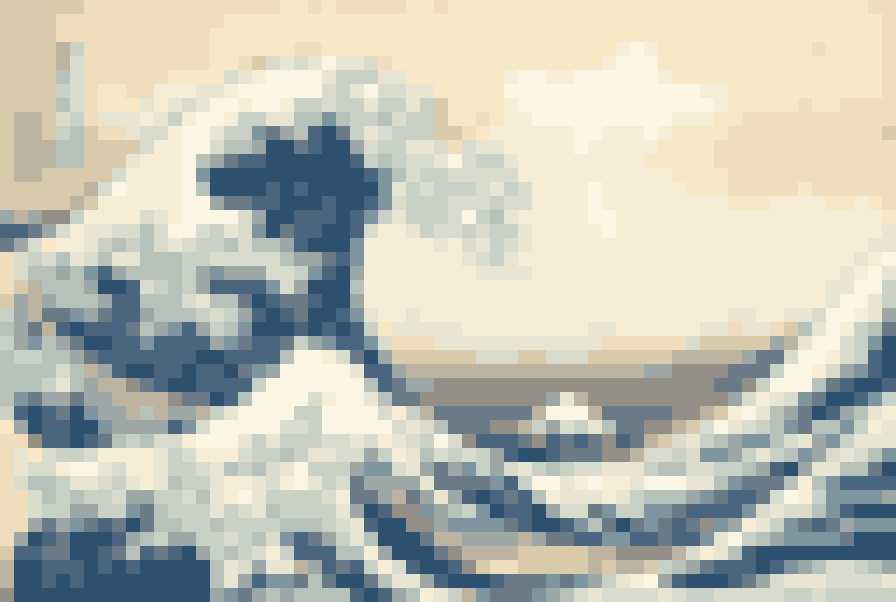
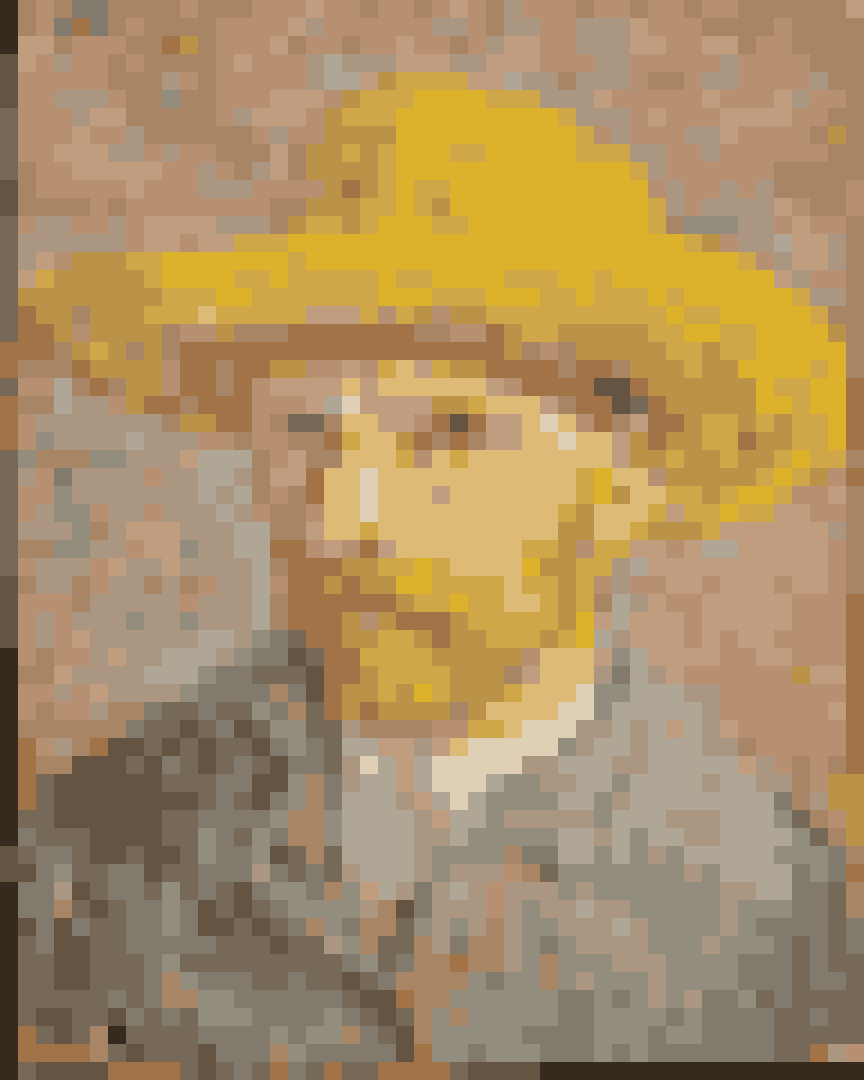
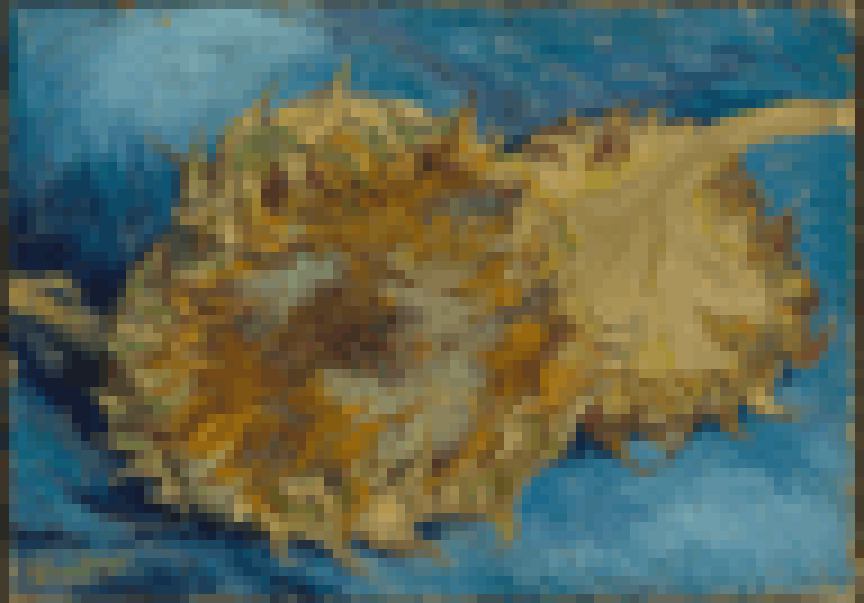
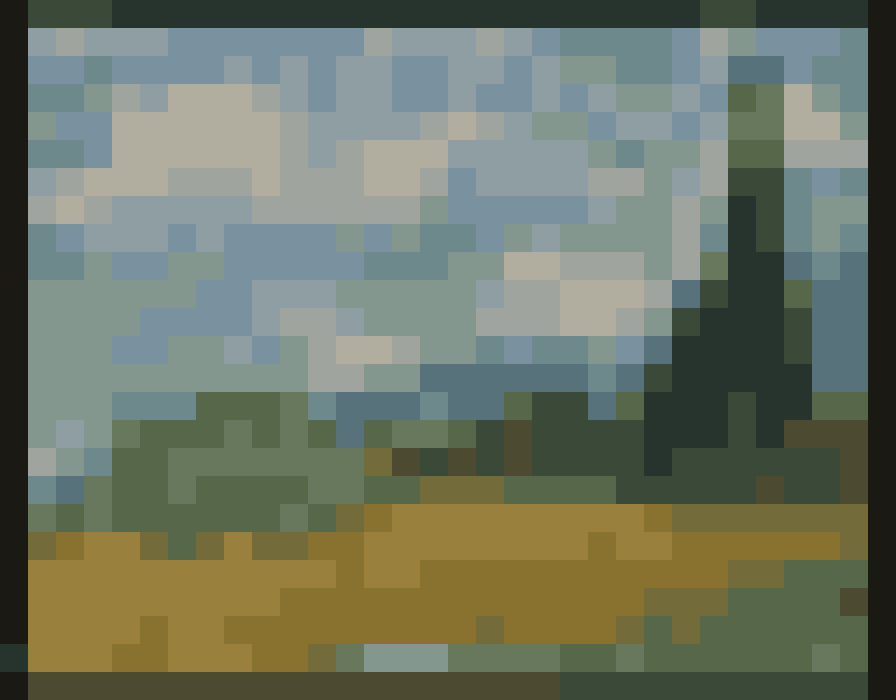
How to convert an image to pixel art
- Choose an image. Photos, drawings and screenshots all work. Crop it first so the subject fills the frame; empty background wastes pixels.
- Set the width in pixels. This is the most important setting. Fewer pixels look more stylised, more pixels keep more detail.
- Pick a palette. Auto finds the best colours in your image. Retro palettes give a recognisable style. Fewer colours look more like hand-made pixel art.
- Add dithering if needed. It smooths gradients in skies and skin when you use few colours.
- Export. Save at 1× for game engines and editors such as Aseprite, or at a larger scale for sharing. Use the pattern PDF for craft projects.
Choosing the right pixel size
| Use | Width in pixels | Colours |
|---|---|---|
| Game sprite or emoji | 16 to 32 | 4 to 12 |
| Avatar or profile picture | 32 to 64 | 8 to 16 |
| Portrait or pet picture | 48 to 96 | 12 to 24 |
| Landscape or scene | 64 to 128 | 16 to 32 |
| Perler / Hama bead board (one 29 × 29 board) | 29 | Match your bead colours |
| Cross-stitch on 14-count Aida, 10 cm wide | 55 | 10 to 30 |
Pixel art patterns for beads and cross-stitch
Pixel art and counted crafts are the same idea: a grid where every square has one colour. Turn on Pattern symbols and every pixel gets a letter or sign that matches a colour in the legend, so you can follow the chart even when two colours look alike on screen or when you print in black and white. The Pattern PDF adds bold lines every 10 squares, which makes counting much easier, splits large charts across pages and lists how many beads or stitches of each colour you need.
For fuse beads, a standard square pegboard is 29 × 29, so set the width to 29 or a multiple of it for multi-board designs. For cross-stitch, divide the finished width you want by the fabric count: 14-count Aida has 14 stitches per inch, so a 4 inch wide design needs 56 pixels. Limiting the palette to the thread or bead colours you own (paste their hex codes into Custom) gives a much more accurate preview.
Why pixel art from photos needs a limited palette
A downscaled photo still contains thousands of slightly different colours, which looks muddy rather than like pixel art. Classic pixel art uses a handful of deliberately chosen colours with clear contrast between them. Reducing the palette, ideally to 8 to 32 colours, is what makes the result read as pixel art. Auto mode uses a median cut algorithm to pick representative colours; fixed palettes map every pixel to the closest colour using a perceptual colour distance, so skin and sky tones land on sensible neighbours.
Pixel art and the grid method
A pixelated version of a reference is also a great drawing aid. The big colour blocks show value and colour shapes without distracting detail, much like squinting at your subject. Turn on Show pixel grid to count pixels as you paint a mosaic, a quilt or a large mural, or take the result to the grid drawing tool and copy it square by square. If you already have small pixel art and need it bigger, the pixel art upscaler enlarges it without blurring the edges.
Frequently asked questions
How do I turn a picture into pixel art?
What is a pixelizer?
What palette should I use?
What does dithering do?
Can I make a perler bead or cross-stitch pattern from a photo?
Can I use the pixel art commercially?
Why does my pixel art look blurry when I zoom in?
More free tools for artists
Grid Drawing Tool
Put a labeled grid over a reference photo, then copy it one cell at a time in step-by-step mode.
OverlayAdd Grid to Photo
Overlay a square, rule-of-thirds or custom grid on any image and save it as PNG, JPG or PDF.
ClassroomGrid Drawing Worksheets
Turn one picture into printable grid drawing worksheets at three difficulty levels, plus mystery grid puzzles.
DownloadTransparent Grid PNG
Free transparent grid overlays in common sizes, or generate your own PNG and SVG grid.
ScalePixel Art Upscaler
Enlarge sprites with crisp nearest-neighbour or Scale2x edges, without blur.